

Restore Wizard (Preview)
Step 5: View Results
This stage is where you review exactly what happened during the restore, broken down by Salesforce object and record. Use it to confirm success, investigate errors, and understand why anything was skipped.
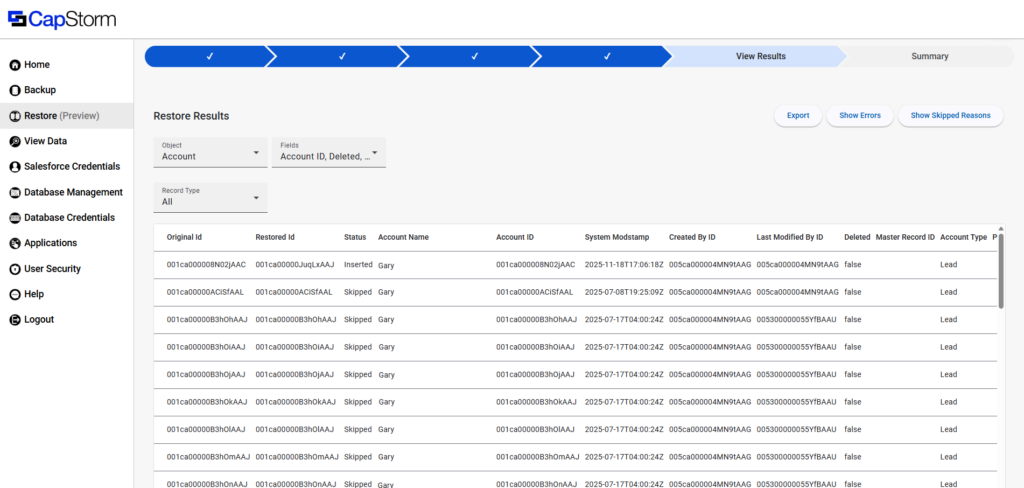
What you see on this page
At the top of the page are filters that control what shows in the results grid:
- Object – chooses which Salesforce object’s restore results you’re viewing
- Fields – chooses which columns/fields are shown in the grid
- Record Type – filters results by outcome/status (details below).
On the right side are action buttons:
- Export – downloads the currently viewed results (based on your selected object/filters/fields).
- Show Errors – opens a view/list of error details (use this first when something failed).
- Show Skipped Reasons – shows the reasons records were skipped (super helpful for “why didn’t it restore?” questions).
- Previous Step – go back if you need to revisit earlier stages.
- Next Step – proceed to Summary after you’ve reviewed results.
How to use filters
1) Object
Select the object you want to analyze (Account, Contact, etc.).
This page shows results one object at a time, so you’ll typically bounce between objects when validating a large restore.
2) Fields
Use this to control which columns appear in the grid.
- Keep it small when you’re troubleshooting (ID + name + status + a couple key fields).
- Add more fields when you need to verify that specific values restored correctly.
3) Record Type
This filters the grid based on restore outcome. Options are:
- All – shows everything.
- Pending – records that are still being processed (mostly useful if you open View Results before the restore is fully finished).
- Skipped – records that were not restored (use Show Skipped Reasons to see why).
- Inserted – records that were created in the target org.
- Updated – records that already existed in the target org and were modified.
Understanding the Results Grid
Common columns you’ll see:
- Original Id – the record ID from the backup/source dataset.
- Restored Id – the record ID in the target org after the restore.
- For Inserted records, this may be a newly created ID.
- For Updated records, it may match the existing target record’s ID.
- Status – the outcome for that record (Inserted / Updated / Skipped / Pending).
- Additional columns (like Account Name, timestamps, audit fields, etc.) depending on your Fields selection.
Troubleshooting workflow
- Set Record Type = Errors
- You don’t have an “Errors” option in the dropdown, so instead click Show Errors to view the error details directly.
- Fix the root cause in Salesforce (common themes: validation rules, missing required fields, permissions, duplicate rules).
- Return here to confirm the error count dropped and records moved to Inserted/Updated.
For skipped records:
- Set Record Type = Skipped
- Click Show Skipped Reasons
- Look for patterns (restore type mismatch is the classic one: Insert Only skips “already exists”; Update Only skips “does not exist”).
Exporting Results
Use Export when you need to:
- Share outcomes with a team/customer
- Track what changed
- Save the restore output for audit/review
Tip: Apply Object + Record Type filters first so the export is focused and readable.