

Restore Wizard (Preview)
Step 4: Upload Data
This stage is where the restore job actually writes data back into the target Salesforce org and shows live progress while it runs. Think of it as your “restore dashboard” – you can monitor overall progress, object-by-object outcomes, attachment handling, and basic container performance.
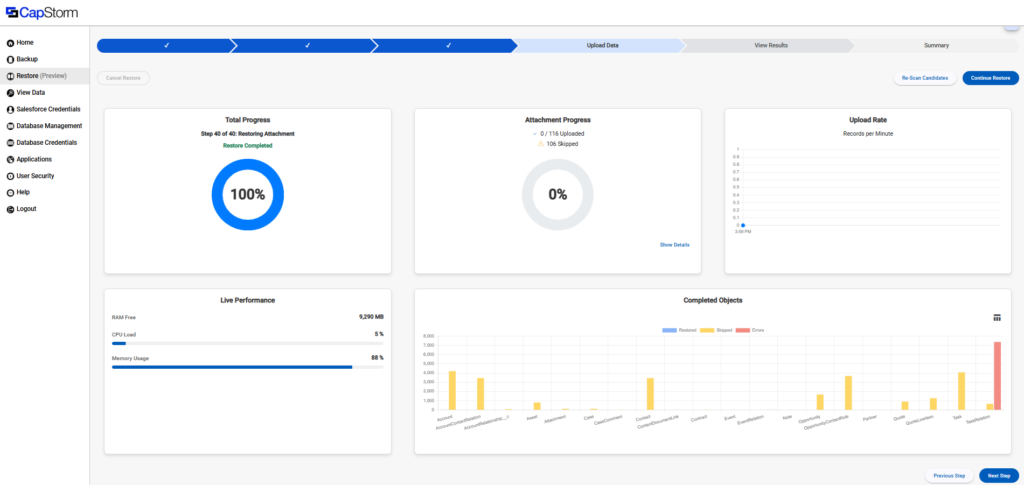
What you do on this page
Start / resume the restore
- Continue Restore: continues the restore process (useful if the job was paused, interrupted, or needs to proceed to the next chunk of work).
- Re-Scan Candidates: re-runs the candidate scan if you changed something upstream or want to re-evaluate what will be restored before continuing.
Stop the job
- Cancel Restore: stops the restore process.
Move through the wizard
- Next Step: go to View Results once you’re ready (typically after the restore finishes).
- Previous Step: go back if you need to revisit prior configuration.
Understanding the Dashboard Panels
Total Progress
This is the “big picture” progress for the restore job.
What you’ll see:
- A step indicator like “Step X of Y: …” (example shown: “Step 40 of 40: Restoring Attachment”)
- A status message like Restore Completed
How to use it:
- If progress is moving, the job is actively processing.
- If it’s stuck on the same step for a long time, check Live Performance and the Completed Objects chart for heavy errors or bottlenecks.
Attachment Progress
Tracks attachment/file-type items separately from the main object record restore.
What you’ll see:
- Counts like Uploaded and Skipped
- Show Details link (bottom-right of the panel)
How to use it:
- If you expected files/attachments to restore and see lots of Skipped, click Show Details and later review View Results to understand what was skipped and why.
- It’s normal for attachments to be processed in their own phase (they’re often heavier and have different constraints than normal records).
Upload Rate (Records per Minute)
A simple throughput graph showing how fast records are being uploaded over time.
How to use it:
- Helpful for sanity-checking performance: if the rate drops to zero while the job isn’t complete, something may be blocked (errors, throttling, connectivity, etc.).
- Small fluctuations are normal; huge flatlines usually mean the job isn’t currently uploading.
Live Performance
Quick view of container resource usage during the restore.
What you’ll see:
- RAM Free (MB)
- CPU Load (%)
- Memory Usage (%)
How to use it:
- If Memory Usage is very high and stays high, restores can slow down or become unstable.
- High CPU during restore is expected; sustained maxed-out CPU + no upload progress is a red flag.
(This panel doesn’t fix anything by itself – it’s your “is my container dying?” gauge.)
Completed Objects
This is the most useful panel for understanding what happened per object.
Legend:
- Restored (blue)
- Skipped (yellow)
- Errors (red)
What it means:
- Restored: records successfully written to Salesforce for that object.
- Skipped: records intentionally not written (common causes: restore type settings, record already exists / doesn’t exist depending on insert vs update behavior, missing prerequisites, or other rules).
- Errors: Salesforce rejected the operation or the restore job couldn’t complete it (permissions, validation rules, required fields, referential integrity, etc.).
How to use it:
- A little yellow is often fine (especially for Update Only / Insert Only restores).
Red bars = you need to investigate. Move to View Results after the job finishes to see the error details and which records failed.
Recommended workflow on this step
- Click Continue Restore to run (or resume) the upload.
- Watch Total Progress to confirm it’s moving.
- Keep an eye on:
- Completed Objects (especially any red “Errors” spikes)
- Upload Rate (should be non-zero while actively uploading)
When Total Progress shows Restore Completed, click Next Step to View Results and validate outcomes.
Common “What am I looking at?” situations
“Why are so many records skipped?”
Skipped usually means the job decided not to write that record based on rules/settings. The two biggest drivers are:
- Restore Type
- Insert Only will skip anything it considers “already exists”
- Update Only will skip anything it considers “does not exist”
- Relationship/order constraints (child record can’t restore cleanly without its parent/state in the target org)
Use View Results for the exact per-record reason.
“Why are attachments skipped?”
Attachments/files often have extra constraints (size, permissions, object support, target org state). Use Show Details in Attachment Progress, then View Results for specifics.
“I have a big red error bar on an object”
Finish the run (or stop if it’s exploding), then go to View Results and resolve based on the reported Salesforce errors (permissions, validations, missing required fields, etc.). After fixing the root cause, you can re-run a restore or adjust configuration and Re-Scan Candidates.