

Restore Wizard (Preview)
Step 3: Scan Records
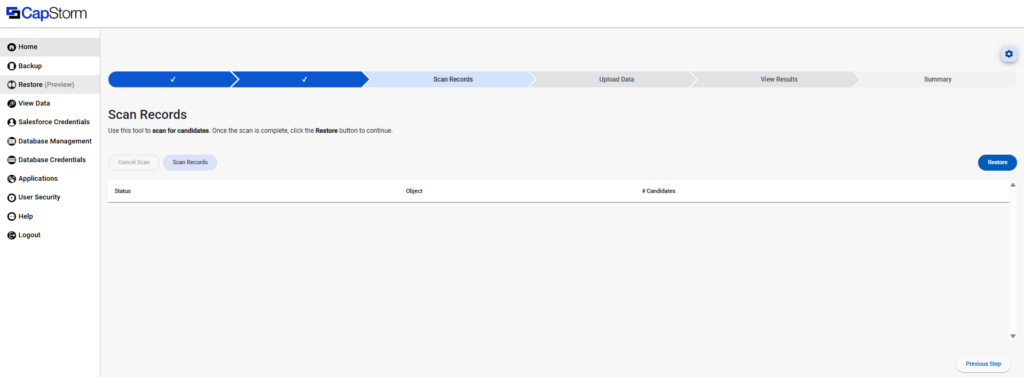
This stage is the “sanity check + planning” step. The wizard scans what you selected (records + related depth + field settings) and builds a list of restore candidates. Once the scan finishes, you’ll click Restore to move forward.
What This Step is Doing
When you click Scan Records, the restore wizard:
- Evaluates your selected top-level object records (from Step 1)
- Applies your Step 2 settings (Restore Type, Object Settings, Related List Depth, Automation choice)
- Determines which objects/records are in-scope and counts them as candidates
- Prepares the restore job so the next steps can upload/apply the data
Screen Layout
You’ll see:
- Scan Records button (starts the scan)
- Cancel Scan button (enabled while a scan is running)
- A grid with:
- Status – progress/state of scanning for that object
- Object – the Salesforce object being scanned (top-level and/or related objects)
- # Candidates – how many records were found that are eligible for restore
- Restore button (top-right) – this is what you click after the scan completes to continue
How to use this Step
1) Start the scan
Click Scan Records.
As the scan runs, the table will populate with one or more rows (depending on your related list depth and what relationships exist).
2) Watch status + candidate counts
Use the table to confirm the restore scope makes sense.
- If you expected “just a handful” and you see a huge number of candidates, your settings are probably too broad (most commonly Related List Depth = All).
- If you expected results and candidates are zero, your filters/selection may be too narrow, or you may be restoring the wrong snapshot/object.
3) Cancel if needed
If you realize the scan is going in the wrong direction (wrong object, wrong depth, candidate count exploding), hit Cancel Scan, then go Previous Step to adjust.
4) Continue
Once the scan is complete, click Restore to proceed to the next stage.
How to Interpret “# Candidates”
A candidate is a record the restore job has identified as in-scope for restoration based on your selections and settings.
Candidate count is heavily influenced by:
- Related List Depth (None vs 1/2/3 vs All vs Custom)
- Your Step 1 Filters
- How many related/child records exist in your data model
Common Issues / Quick Fixes
“This is way too many records”
- Go back to Configuration and reduce Related List Depth (try None or 1 Level first).
- Tighten Step 1 filters to target a smaller set.
“No candidates show up”
- Verify you selected the right Database + Data Set (snapshot) and Object in Step 1.
- Loosen filters and re-run the scan.
- Confirm you aren’t using Update Only when the target org doesn’t already contain those records (that can result in fewer/no eligible candidates depending on matching behavior).
Scan takes a long time
- Big restores are usually caused by deep relationship depth + lots of related data.
- Cancel, reduce depth, and re-scan to validate scope before committing.