

Restore Wizard (Preview)
Step 2: Configuration
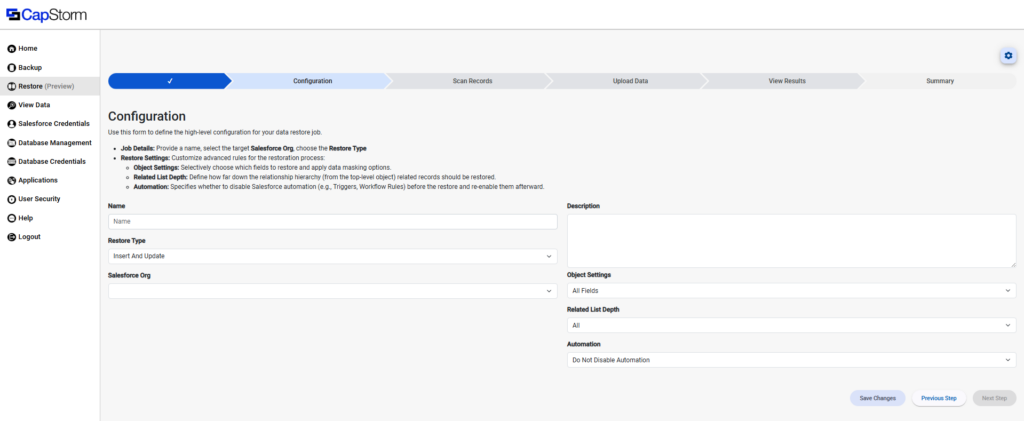
This stage defines the high-level restore job configuration: what the job is called, which Salesforce org you’re restoring into, how the restore behaves (restore type), and a few “be careful with this” options like field selection/masking, related record depth, and Salesforce automation behavior. CapStorm/Container is built for Salesforce backup + recovery workflows like this.
Before You Start
- You should already have selected the Database / Data Set (snapshot) / Object / record set in Select Records.
- Make sure the target Salesforce Org credentials exist in the container, otherwise the Salesforce Org dropdown won’t have anything to pick.
Job Details
Name
Give the restore job a clear name you’ll recognize later (example: Restore Accounts – Sandbox QA – 2025-12-16).
Description
Optional, but useful for notes like why you’re doing the restore or what filters were used.
Restore Type
Controls how the restore writes records into Salesforce.
Insert and Update
- Inserts records that don’t exist in the target org.
- Updates records that already exist in the target org.
- Best choice for “bring my data back” restores when you’re not 100% sure what already exists.
Insert Only
- Only inserts new records.
- Does not modify existing records.
- Use when you’re loading data into an org and you want to avoid overwriting anything already there (common for seeding sandboxes / partial restores).
Gotcha: If records already exist (based on whatever matching/key logic is used later in the wizard), they’ll be skipped rather than updated.
Update Only
- Only updates records that already exist in the target org.
- Does not create new records.
- Use when you’re correcting or reverting fields on records you know are already present.
Gotcha: If a record doesn’t exist in the target org, it will not be created-so you can end up with a partial restore if your assumptions are wrong.
Salesforce Org
Select the target Salesforce org where data will be restored.
- This list is populated from entries you’ve configured under Salesforce Credentials.
- If this dropdown is empty, go set up credentials first.
Restore Settings
Object Settings
Controls which fields are included in the restore for the top-level object (and how much control you want).
All Fields
- Restores all supported fields for the object.
- Best for full-fidelity restores.
Custom
- Lets you choose exactly which fields to restore.
- Use when:
- You only need a few fields corrected
- You want to avoid overwriting specific fields in the target org
- You’re restoring into a non-production org and want to exclude sensitive fields (depending on your org policies)
Related List Depth
Controls how far the restore should go down the relationship tree from the selected top-level object (related lists / child records).
None
- Restores only the top-level object records you selected.
- Fastest and least intrusive option.
1 Level / 2 Levels / 3 Levels
- Restores the top-level records plus related records up to that depth.
- Use when you need a predictable amount of related data.
Practical example
- Restoring Accounts:
- 1 Level might include direct children like Contacts (depending on your schema)
- 2+ Levels starts pulling in grandchildren (e.g., Contact → Cases, etc.)
All
- Restores the full related hierarchy (as far as the restore tool can traverse).
- Use when you need completeness and are okay with a bigger restore job.
Gotcha: “All” can balloon the record count fast in complex orgs.
Custom
-
- Lets you define a custom depth and/or relationship selection rules (implementation-specific).
- Use when:
-
- You need deep restore for one relationship branch, but not others
The numbered depth options are either too shallow or too broad
Automation
Controls whether Salesforce automation is disabled during the restore.
Do Not Disable Automation
- Leaves automation on (Flows, Workflows, Process Builder legacy stuff, Triggers, etc.).
- Use when automation is part of the intended behavior and you want restored data to be processed normally.
Gotcha: Automation can modify restored values immediately, create additional records, or block changes with validations-so your “restored” state might not match the backup perfectly.
Disable All Automation
- Attempts to disable Salesforce automation before restore and re-enable it after.
- Use when you want the restore to be as “pure” as possible and avoid side effects.
Gotcha: Disabling automation can have org-wide impact while the job runs. Use with care, and ideally in lower environments unless you have a clear operational plan.
Custom
-
- Lets you disable a specific subset of automation (implementation-specific).
- Use when:
-
- You know exactly which triggers/flows/validations are the problem
You want to minimize blast radius compared to “Disable All”
Save and Move Forward
Save Changes
Click Save Changes after you complete required settings.
Next Step
Next Step stays disabled until required fields are filled (Name, Restore Type, and Salesforce Org at minimum). Once saved, proceed to Scan Records.
Previous Step
Go back if you need to change the selected record set before committing configuration.