

Restore Wizard
Step 1: Select Records
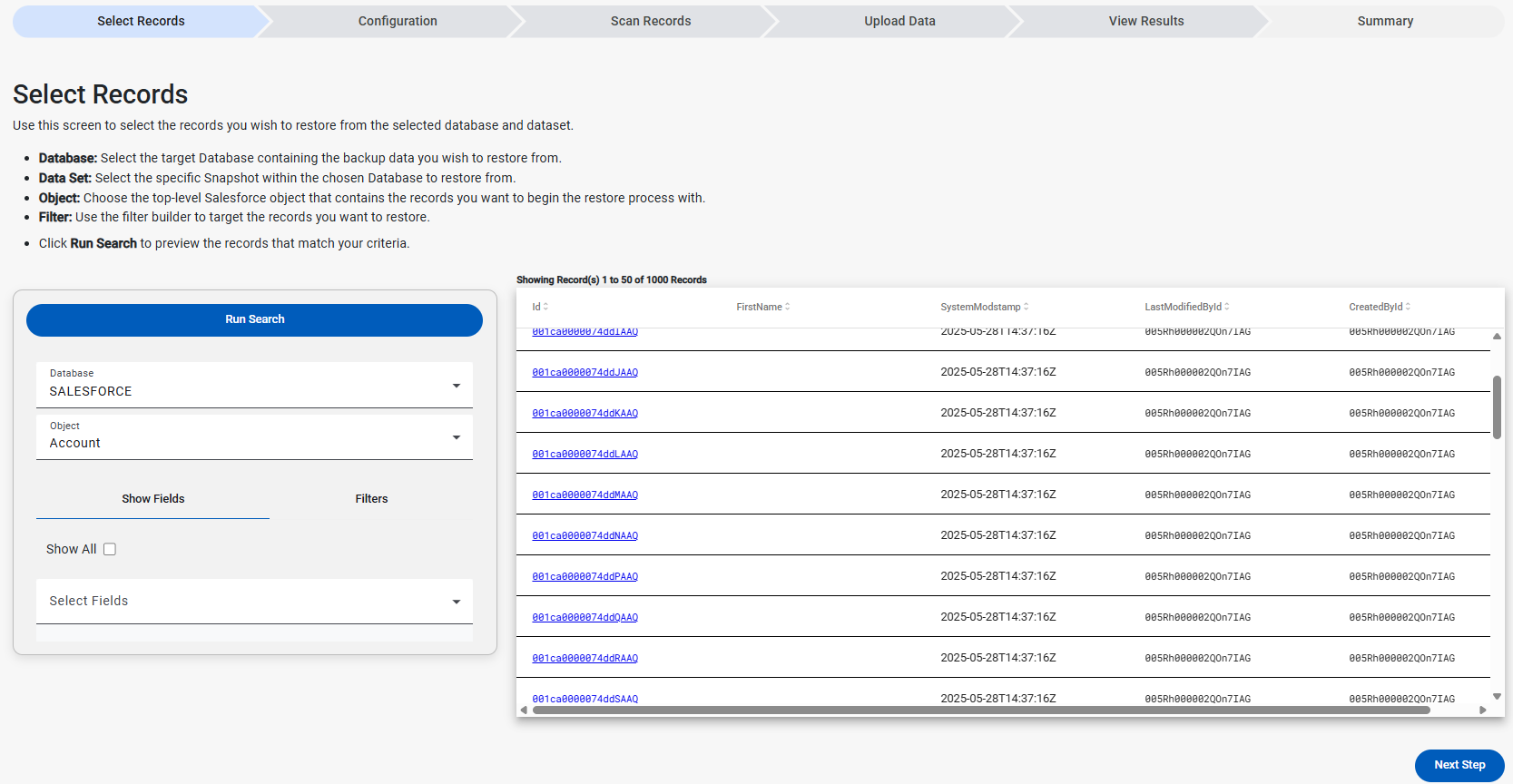
The Select Records stage of the Restore Wizard allows for the selection of the target database to restore records from as well as the top level object to start the restoration. Filters can be applied to the object to scope down the records to the target candidates for restoration as well as using the Run Search button to view the top level objects before beginning the process.
Before Starting
To successfully select records and complete the Restore Wizard, the following is required:
- A database containing a CopyStorm backup
- This can be from either a backup created from the Setup page, a backup created manually through the application, or a connected database that was created from the CopyStorm desktop application in Snowflake.
- Valid Salesforce credentials for the target to restore
Step-By-Step
1) Choose a Database
In the Database dropdown, select the database that contains your CopyStorm backup data.
- If there are multiple backup databases, pick the one that corresponds to the org/data intended to restore.
2) Choose an Object
In the Object dropdown, choose the top-level Salesforce object to start from (for example: Account, Contact, Case).
- This object becomes the basis for the search + preview results.
4) Pick what should be seen in the preview (Show Fields)
Use the Show Fields tab to control which fields/columns appear in the preview results grid.
- This helps confirm the selection is targeting the correct records before moving forward.
- If not sure what to include, start with obvious identifiers (Name, Email, etc.) and expand as needed.
5) Narrow the record set (Filters)
Switch to the Filters tab to define criteria for the records you want restored.
- Keep filters tight when possible-especially in large orgs-to reduce scanning and make validation easier.
- Example filters (conceptually): Name equals “Acme” or LastModifiedDate greater than .
6) Run the preview search
Click Run Search.
- Matching records will populate in the right-side results grid.
- If nothing appears, loosen your filters (or verify you selected the intended snapshot/object).
7) Proceed
Once the preview looks correct, click Next Step (bottom-right) to advance to Configuration.
Common Gotchas
- “No Records to Show” after Run Search
- The filter may be too restrictive, or the selected snapshot doesn’t contain the records expected.
- Database/snapshot not available
- Confirm the database exists/was created for CopyStorm backups in Database Management and that access is configured in Database Credentials.